


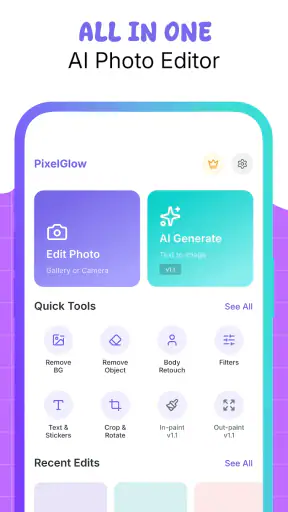
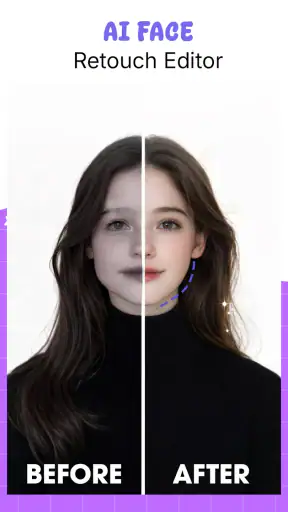
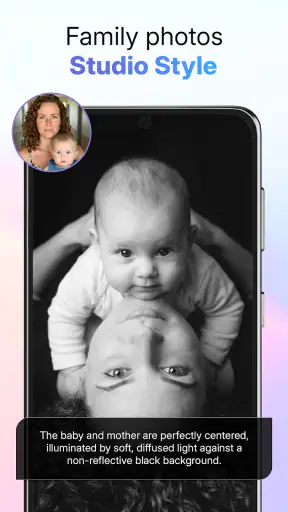
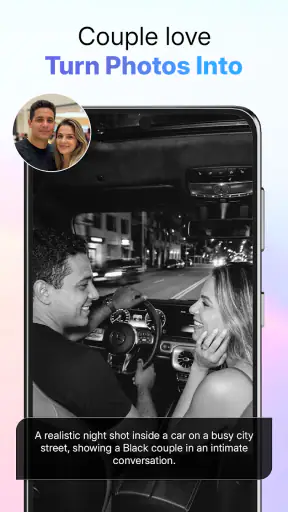
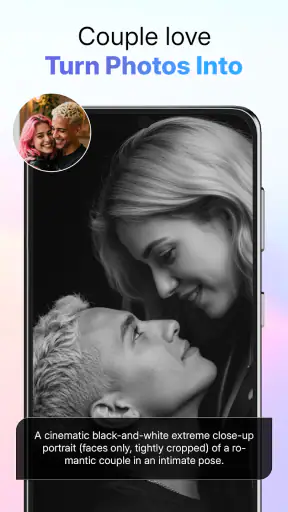
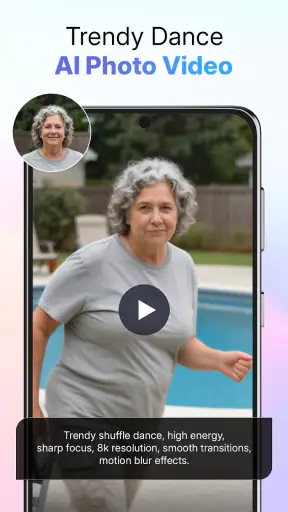
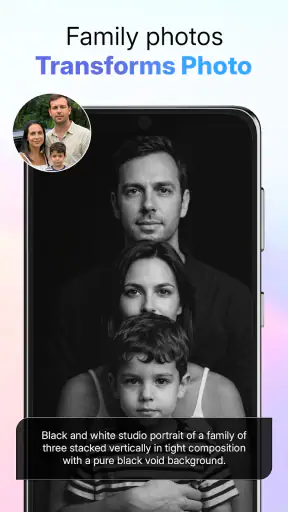
I approached AI Photo Beauty Editor Studio as a practical photography tool rather than a simple filter collection. Its main idea is to let me describe an edit in ordinary language and use AI to retouch a beauty photo, remove a background, erase an unwanted object, or improve the overall image. That makes it interesting for anyone who wants a quick result without learning a complicated desktop editor.
In my experience, the appeal is strongest when I have a specific visual problem to solve. A portrait may need a small cleanup, a distracting item may need removing, or the background may not suit the subject. Instead of searching through many adjustment panels, I can begin with a prompt and judge the result. The approach feels more direct than traditional editing, although it also means I need to review every generated change carefully.
The app is free to install and is aimed at Everyone, which makes it approachable for casual users, social media creators, students, and small sellers who need better-looking images quickly. It comes from ATQ - AI Lab and sits in the Photography category. Its current release is version 1.2.1, with Android 7.0 or later required.
How the AI editing workflow feels in everyday use
Prompt-based editing is useful when the request is precise
The most important habit I developed was writing prompts that describe one clear task at a time. “Remove the person in the background” is more useful than asking for a general improvement, because I can immediately see whether the requested change worked. For beauty edits, I would keep the wording restrained: a natural skin cleanup or a subtle portrait enhancement is easier to evaluate than an instruction asking for a completely flawless face.
This matters because AI editing can produce an image that looks impressive at first glance but falls apart when I zoom in. Hair edges, jewelry, fingers, patterned clothing, and small facial details deserve a close inspection. I would never publish a result immediately after generation. A quick check at full size helps catch soft edges, repeated textures, or an object that has been removed unevenly.
A useful workflow is to make a copy of the original before experimenting, then handle the largest visual problem first. If the background is distracting, I would remove or replace it before asking for beauty adjustments. If I start with several changes at once, it becomes difficult to tell which instruction caused an unwanted result. This simple order also makes it easier to return to the original when an edit goes too far.
Connectivity changes the experience
AI image processing can make a connection feel like part of the editing process. When I submit a prompt, I expect a short wait while the request is interpreted and the image is prepared. That means the app is most comfortable when I am on a stable network, especially with larger photographs or several attempts. I would avoid starting a detailed editing session just before boarding transport or entering a place with unreliable reception.
This is particularly relevant for spontaneous photography. Imagine taking a portrait at an event and wanting to remove a bright sign behind the subject before sharing it. The app may be convenient if the connection is strong, but it is less dependable as an emergency tool when the signal keeps dropping. I would make the original photo safe first and treat the AI result as a later step rather than something I must complete immediately.
There is also a practical difference between browsing an editor and sending an image for AI treatment. A normal crop or brightness adjustment usually feels immediate, while a prompt-driven edit can involve processing that depends on the quality of the connection. I found it more sensible to prepare several candidate photos first, then work through them when I have time to inspect each result instead of repeatedly submitting rushed requests.
Useful mobile scenarios
On a phone, the app makes the most sense for small, focused jobs. A marketplace seller could clean up a product photo by removing a stray object or improving an untidy background. A traveler could make a portrait less cluttered before posting it. Someone preparing a profile image could ask for a modest retouch rather than spending time learning layers, masks, and selection tools.
The mobile format also encourages quick decisions, but that can be a weakness. A result that looks fine on a small screen may reveal problems when viewed on a larger display. I recommend checking important images at their natural size before using them for a listing, printed material, or professional profile. The phone is excellent for convenience, but convenience should not replace visual quality control.
For social posts, I would use the tool for cleanup rather than dramatic transformation. Removing one background distraction or softening an obvious blemish can preserve the character of the photograph. Heavy changes may make the subject look artificial, and AI-generated alterations can be especially noticeable when the same person appears in a series of images with different facial proportions or skin texture.
Background removal and object cleanup need different judgment
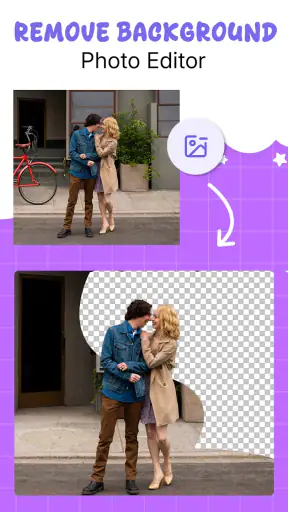
Background removal sounds like one task, but the quality standard depends on the subject. A product with a clean outline is easier to judge than a person with loose hair, transparent accessories, or a textured jacket. I would inspect the boundary around the subject instead of looking only at the center of the image. A clean-looking face does not guarantee a clean cutout.
Object removal has a similar trade-off. It is most convincing when the unwanted item sits against a simple, repeatable surface. A small mark on a plain wall may disappear naturally, while an object crossing a patterned table or a detailed architectural background can leave visible inconsistencies. If the first attempt looks strange, I would narrow the request and remove one item at a time rather than asking the app to reconstruct an entire complicated scene.
These are not reasons to avoid the tools. They are reasons to use them selectively. The app is strongest when I give it a manageable correction and then decide whether the result is believable. For demanding commercial retouching, I would still prefer a conventional editor with precise masks and manual control.
What happens when an edit fails
AI results are not always predictable, so recovery is part of the workflow. My first rule is to keep the untouched original. My second is to avoid stacking uncertain edits on top of one another. If a background removal damages hair or an object erase creates a strange patch, I would return to the original and try a simpler instruction instead of attempting to repair the damaged version repeatedly.
Prompt wording can also be used as a recovery tool. Rather than asking for “a perfect face,” I would specify “keep facial features and expression unchanged, make only a subtle skin correction.” For an unwanted object, I would identify its position and ask for the surrounding texture to remain consistent. These instructions do not guarantee a perfect result, but they give the AI a narrower target and make mistakes easier to spot.
A failed result is more frustrating when the network is unstable because I may not know whether the issue came from the image request, the connection, or the processing itself. I would wait for the current attempt to finish before pressing buttons repeatedly, then check whether the image actually changed. If the same request keeps producing poor results, changing the source image or simplifying the task is more productive than sending identical prompts again.
Using the app without wasting data or attempts
Photography files can be large, so I would prepare images before sending them into an AI workflow. There is little benefit in submitting an enormous original for a quick social-media cleanup if a suitably sized copy will do. Keeping the original untouched and making a working copy gives me both flexibility and a safer way to experiment.
I would also avoid generating several versions before deciding what I actually want. A short plan helps: identify the main distraction, write one prompt, inspect the result, and only then move to a second adjustment. This saves time and reduces unnecessary network activity. It also makes comparisons clearer, because I know what changed between versions.
Anyone concerned about mobile data should reserve larger editing sessions for a dependable connection. The free installation makes trying the app easy, but in-app purchases range from $3.99 to $39.99 per item, so I would review any purchase screen carefully before committing. A sensible approach is to test the basic workflow on a few personal images first and decide whether the quality and convenience justify spending money.
The app has a 4.0 average from around 1.8 thousand ratings, while its reach has passed 1 million installs. Those figures suggest that it has attracted a meaningful audience, but they do not replace my own inspection of each edited photo. AI output is highly dependent on the source image and the request, so a result that works beautifully for one portrait may be disappointing for another.
Who will enjoy it, and who should choose something else?
I think this app suits people who want fast, guided photo improvements and do not want to learn a full editing suite. It is especially appealing for casual portraits, quick background cleanup, simple object removal, and small visual fixes made directly from a phone. The prompt approach can also help beginners understand what they want to change before they move to more advanced software.
I would be more cautious about recommending it to photographers who need repeatable, pixel-level control. If every edge must be exact, if color consistency across a product catalog matters, or if edits need to be recreated precisely later, a traditional editor with layers and manual selections is the safer option. The same applies to people who expect every generated result to be instant and independent of network conditions.
It is also not the ideal choice for someone who dislikes reviewing AI changes. The app can reduce manual effort, but it does not remove responsibility. I still need to check faces, hands, hair, text, and object boundaries. For a private image shared casually, a small imperfection may be acceptable. For an advertisement, portfolio, or important profile photo, I would apply a much stricter standard.
My final view on the connected editing experience
After using it as a mobile photography helper, I see AI Photo Beauty Editor Studio as a convenient first-pass editor rather than a complete replacement for professional retouching software. Its strongest quality is the directness of describing a desired change instead of hunting through menus. Retouching, background cleanup, object removal, and enhancement are easy concepts to understand, and the workflow can be genuinely helpful when the request is small and the source image is suitable.
The network aspect should shape expectations. I would use it when I have a reliable connection, enough time to inspect the output, and a saved original nearby. I would not depend on it for a last-second edit in a weak-signal location, and I would not assume that a successful generation is automatically ready to publish. The best results come from treating AI as an assistant whose work still needs a human check.
For a free photography app with an Everyone age rating and support for older Android devices beginning with Android 7.0, it is easy to try without making a large commitment at the start. The optional purchases mean I would explore the workflow carefully before paying for more. My recommendation is positive for casual users who value speed and prompt-based control, but conditional for professionals: choose this app for quick mobile corrections, and keep a conventional editor available when precision, repeatability, or dependable work without connectivity matters more.


